

AI agents: managing projects over MCP
What an agent can do
- Look: projects and their state, the application log and the journal of events, load, files, databases, backups, the state of the git deploy, tariffs and the balance.
- Manage: start, stop and restart; the handler, its version and commands; environment variables; domains; cron jobs and background processes; files; the repository and the git deploy; databases; backups; creating a project.
- Pay — only if you allowed it: paying for a new project, renewing and upgrading a tariff.
- The irreversible — at a separate access level: deleting a project, a database, files or a backup, restoring from a backup.
1. The server's address
One address for every agent:
https://panel.podicloud.com/mcp2. Claude and ChatGPT in the browser
- In the application's settings add a custom connector (an MCP server) and enter the address from step 1.
- The application opens a page of the panel. Sign in to your account.
- Check which application asks for access and which address you will go back to (for example
claude.aiorchatgpt.com). Allow it only if you started the connection yourself. - Choose the access level, the projects and whether it may spend the balance, enter the account's password and press Allow.
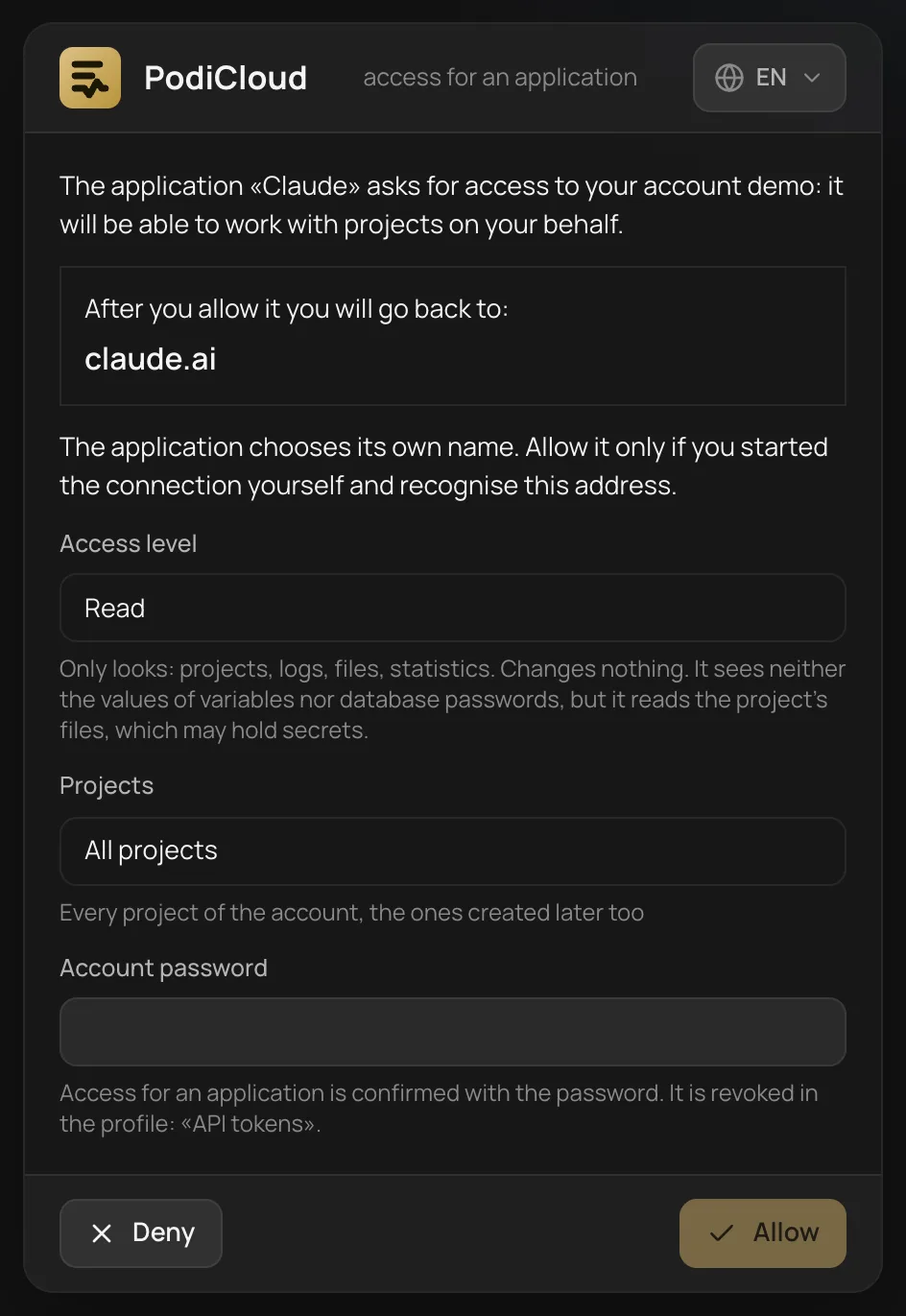
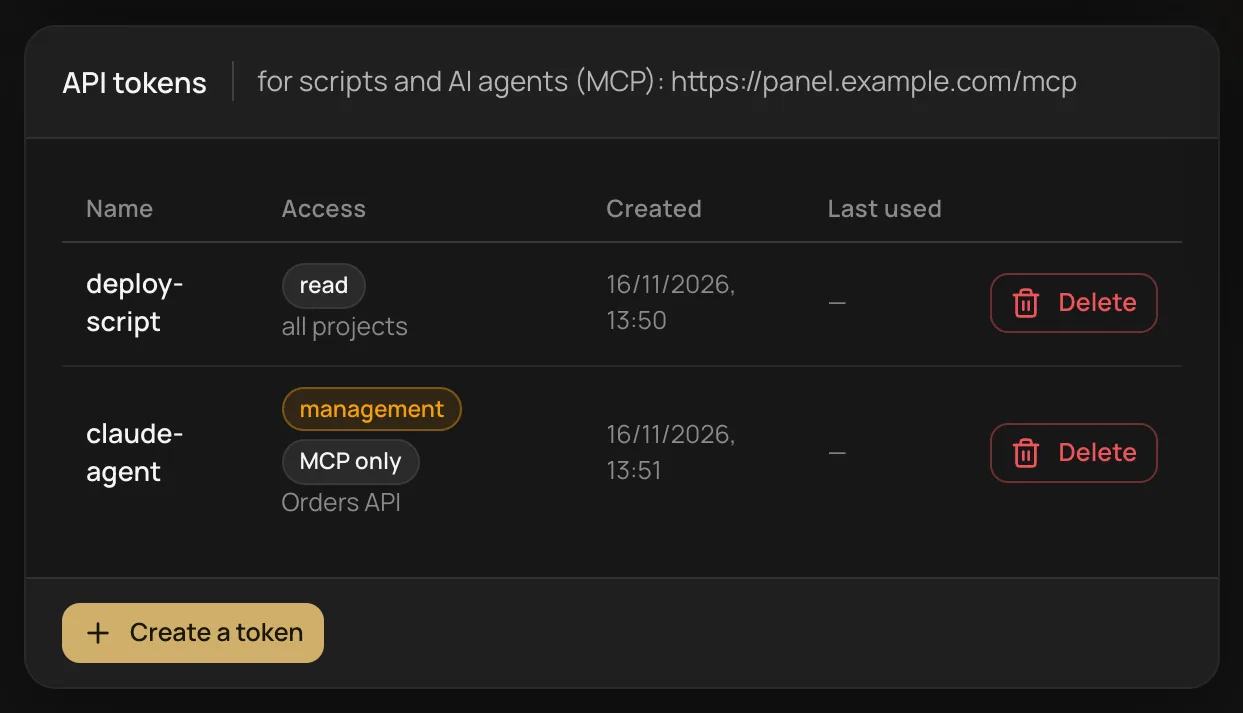
The access appears in the panel: Profile and security → API tokens, named «OAuth: …». It is revoked there too.
3. Claude Code, Cursor, VS Code and other programs
These agents need a token.
- In the panel open Profile and security → API tokens → Create a token.
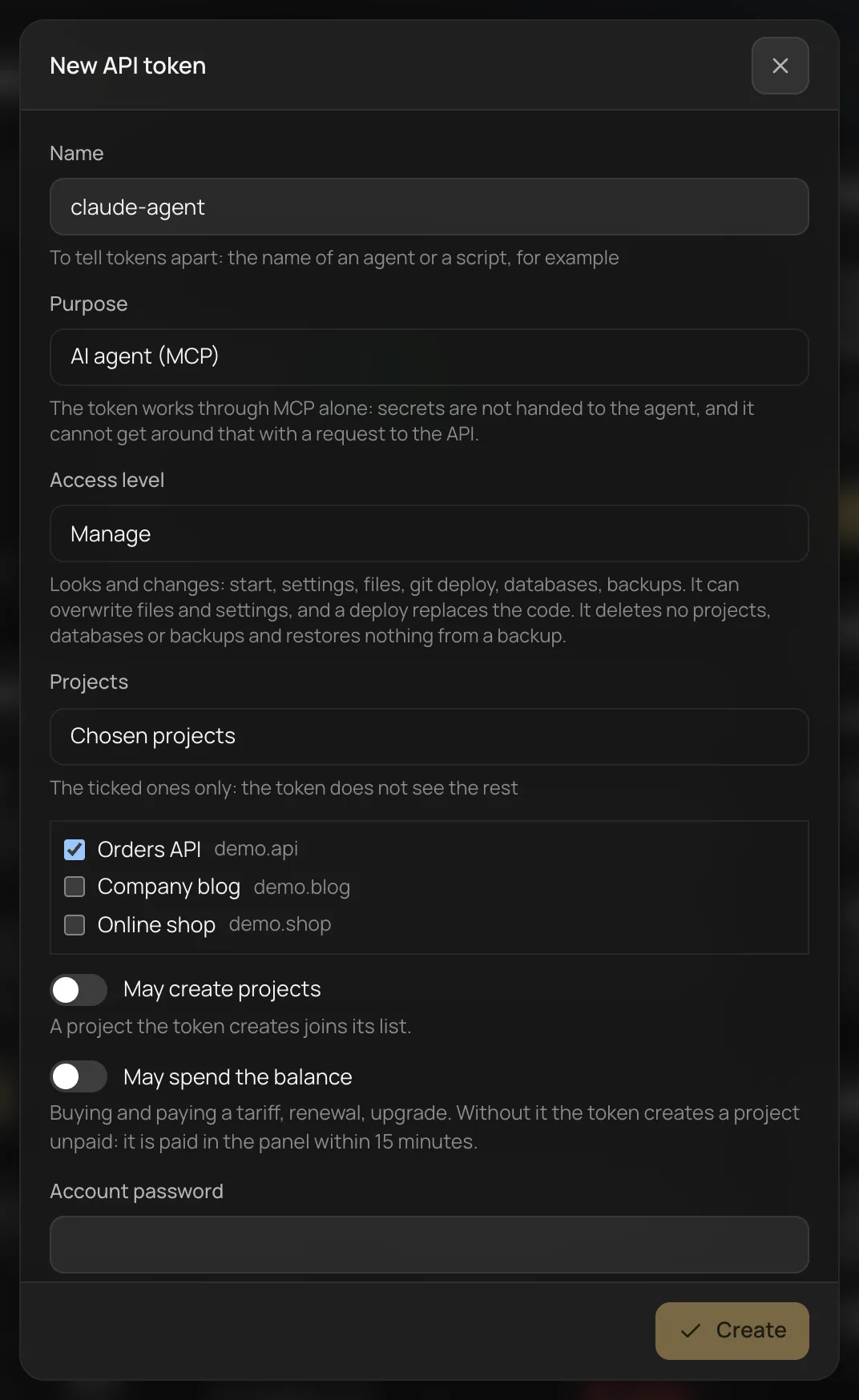
- Set the name, the access level, the projects and whether it may spend the balance, and confirm with the password.
- Copy the token: it is shown once.
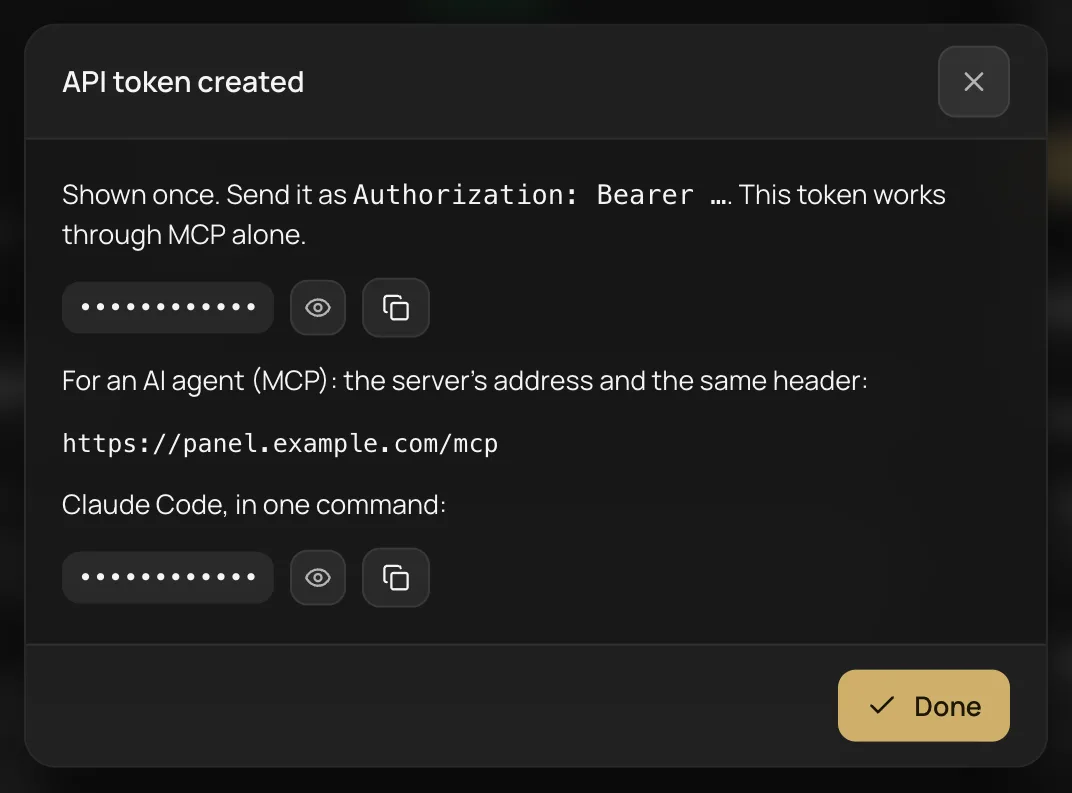
Claude Code — in one command (the panel shows it ready after the token is created):
claude mcp add --transport http hosting https://panel.podicloud.com/mcp --header "Authorization: Bearer ewp_…"Cursor, VS Code, Claude Desktop and others — add a remote (HTTP) server in the MCP servers settings:
{
  "mcpServers": {
    "hosting": {
      "type": "http",
      "url": "https://panel.podicloud.com/mcp",
      "headers": { "Authorization": "Bearer ewp_…" }
    }
  }
}
4. What to allow the agent
- Access level. Read — the agent only looks. Manage — it also changes settings and files, runs deploys, creates databases and projects, but deletes nothing. Dangerous actions — everything, deleting and restoring from a backup included.
- Projects. Every project of the account or only the ticked ones. The agent does not see the rest.
- May spend the balance. Off by default.
Start with «Manage» on the projects you need, without the right to spend. Give «Dangerous actions» for the time of one task and delete that token afterwards.
5. A new project and payment
An agent can create a project on a tariff you chose. If it may spend the balance and there is enough money, the tariff is paid at once and the project starts. If not, the project is created unpaid and does not run: the agent tells you how much is needed and where to pay. Pay the project in the panel within 15 minutes — the panel removes an unpaid project.
6. Security
- Secrets are not handed to the agent: the values of environment variables are hidden, database and SFTP passwords are not shown. The agent can set a variable but not read it. The exception is the project's own files: the agent reads them, and it will see a secret kept in a file (
.env, for example). - «Manage» changes things, not only adds them: the agent can overwrite a file or a setting, and a deploy replaces the project's code. At this level it cannot delete a project, a database, a file or a backup.
- The journal. Every action of the agent is written to the project's journal under your name with the «MCP» mark.
- Revoking. Delete the token in the profile — the agent loses access at once.
- Someone else's text. A project's logs and files may hold text written to look like a command to the agent. So give the agent no more rights than the task needs.
Questions left — see the frequently asked questions or write to support@podicloud.com.