

Custom image
How the container works
- Command. If the "Start command" field is empty, whatever the image defines is run (
ENTRYPOINTandCMD). If a command is set, it replaces both the image'sENTRYPOINTandCMDand runs via/bin/sh -cin the/appdirectory, as in the other handlers. So the image must contain/bin/sh, write the paths to the application in full, and if the image needs its own entrypoint script, call it in the command:docker-entrypoint.sh node /srv/server.js. - Without root. The container runs as the project's uid, without root rights or extra privileges. Ports below 1024 (for example,
80) can be listened on. - The project directory is
/app. The node mounts it over the image, and it becomes the working directory. Anything the image had in/appis hidden, and the image'sWORKDIRhas no effect: put the application into another directory (/srv,/opt/app) and write full paths inCMD. - Data. Only
/appsurvives restarts and image updates: that is where the SQLite database, uploaded files and other data must live. This directory is accessible via SFTP and is included in backups. - Variables. The container gets the variables from the "Environment variables" block, plus
PORT,EWP_PROJECT_IDandEWP_PROJECT. - Ports. HTTP goes through the domain; a non-HTTP service (a game server, a TCP or UDP protocol) is published in the "Ports" block.
- What is missing. A project is a single container: docker-compose is not supported; how to split several services across projects is described on the "Docker hosting" page. The "Processes and cron" block and the build command do not apply to a custom image: run background processes and schedules inside your image. The "Terminal" opens if the image has
shorbash; "Logs" show the output of the image's process.
1. Ready image
In the wizard (how to create a project), choose the Custom image tile, the Ready image switch, and fill in the fields:
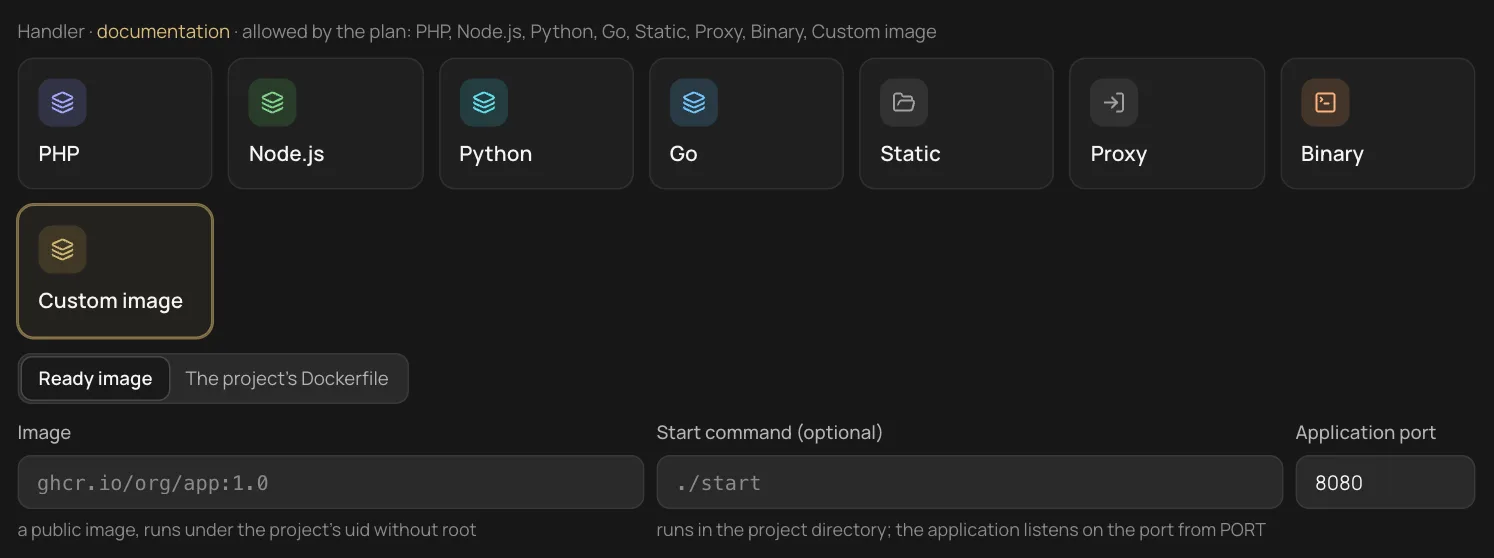
- Image — a public image from Docker Hub (
traefik/whoami:v1.11,org/app:1.4.2) or another registry (ghcr.io/org/app:1.0). Private registries with a login are not supported; the panel does not accept a registry at a local or private address. - Application port — the port the image listens on: for
traefik/whoamiit is80. The panel also passes it in thePORTvariable — an image that reads it adjusts by itself.
After saving, the node pulls the image in the background. While it is being pulled, the project is in the "preparing" state and the previous container keeps running; a small image is ready in about a minute.
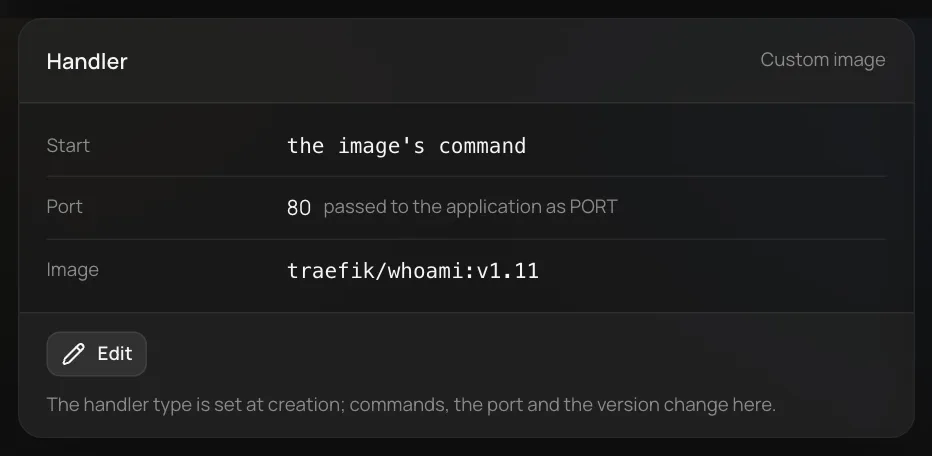
80.:latest will not be updated. To move to a new version, change the tag in the "Handler" block → "Edit".2. The project's Dockerfile
Switch to The project's Dockerfile: the node builds the image itself. The Dockerfile field holds the path to the file inside the project, Dockerfile in the root by default.
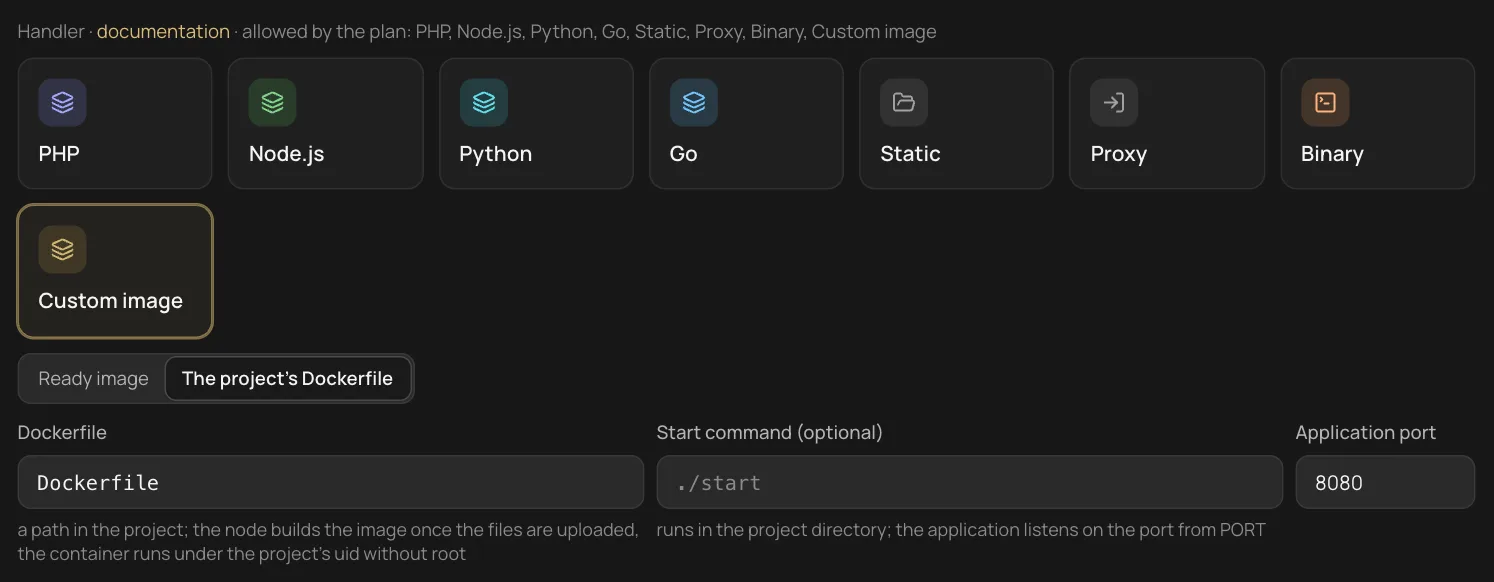
- Files. Upload the Dockerfile and everything it copies to the project — via SFTP, "Files" or Git deploy (the ways). The build context is the whole project directory, so paths in
COPYare written from its root. - .dockerignore. If there is none, the node creates the file with the line
backups/, so that backups do not end up in the image. Add everything unneeded there —logs/,.cache/,node_modules/: a smaller context means a faster build. - Build. While the image is being built, the project is in the "preparing" state with the note "образ собирается из Dockerfile" (the image is being built from the Dockerfile), and the previous container keeps running. When the image is ready, the container restarts on it. The node rejects an image larger than the plan's disk.
- Check. Click "Open" in the project header; the process output is in "Logs".
A minimal example — a static site from the site directory, served by the built-in BusyBox server:
FROM busybox:1.37
COPY site/ /srv/
CMD ["httpd", "-f", "-v", "-p", "8080", "-h", "/srv"]
For compiled languages a two-stage build is handy: the compiler only in the first stage, only the result in the image. An example for Go (the code is in the src directory):
FROM golang:1-alpine AS build
WORKDIR /src
COPY src/ .
RUN CGO_ENABLED=0 go build -trimpath -ldflags "-s -w" -o /out/app .

FROM alpine:3
COPY --from=build /out/app /srv/app
CMD ["/srv/app"]
3. Updating the image
- The Dockerfile itself changed — the node notices it within a minute and builds the image again.
- Other files changed (the code that
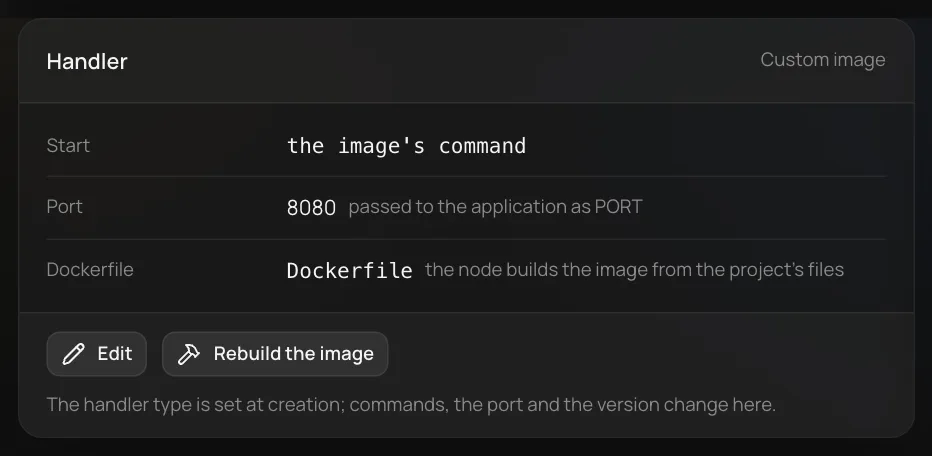
COPYcopies) — click "Rebuild the image" in the "Handler" block. - Git deploy updates the project's files and restarts the container, but does not rebuild the image: if the code goes into the image, click "Rebuild the image" after the deploy.
4. If something goes wrong
- The site returns 502, and "Logs" show "Permission denied". The image expects to run as root:
nginx:alpine, for example, fails withmkdir() "/var/cache/nginx/client_temp" failed (13: Permission denied). Take a rootless variant of the image or build your own, in which the application writes only to/appand/tmp. - The site returns 502, and "Logs" are empty. The "Application port" does not match the port the image listens on, or the application listens on
localhostinstead of0.0.0.0. - "not found" for a file that is in the image. The file is in the image's
/app(the project directory hides it), orCMDuses a relative path. Move the application to another directory and give the full path. - The project is in the "error" state with
docker buildoutput. The Dockerfile build failed — the end of the build log is shown in the project card. The previous container keeps running meanwhile. - "Dockerfile не найден" (Dockerfile not found). There is no file at the given path: upload it and click "Rebuild the image".
- The application cannot write to its home directory or does not know the user name. The image has no
/etc/passwdentry for the project's uid, and/is taken as the home directory. SetHOME=/appin the "Environment variables" block or add the user in the image.